← Guides
Gyms & equipment
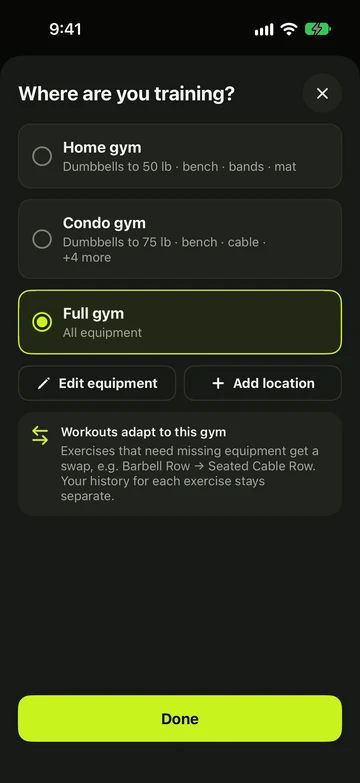
Tell Vivrep what each place you train has. Workouts swap exercises to fit — just for today.
Switch gyms
- Tap the gym chip at the top of Today, or Gym on Review.
- Pick a gym under Where are you training? It switches straight away.
- Open a workout. Exercises that needed missing equipment now show a blue “Swapped for …” tag with your gym’s name.
Set up a gym
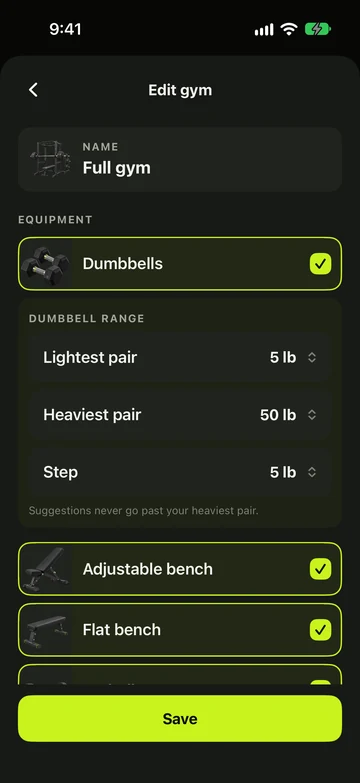
- Tap Edit equipment in the same sheet, or Add location for a new one.
- Give it a Name and toggle the Equipment that’s there.
- Set the Dumbbell range: Lightest pair, Heaviest pair and Step.
- Under Bars, set the weight of each bar the gym has. With Pro, Plates lets you choose which plate sizes it has and how many pairs of each. The plate sheet and weight suggestions use them. Unlocking the bar in the plate sheet changes the same weight.
How swaps work
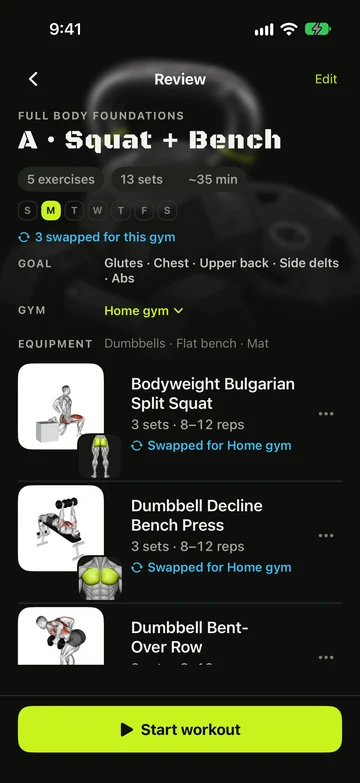
- Swaps are for today only. Your saved workout keeps the original exercise.
- Tap Undo swap to keep the original anyway.
- If nothing fits, the row shows an amber tag naming what’s missing, such as Needs Barbell.
- At a full gym nothing is swapped.
- Weight suggestions never go past your heaviest dumbbell pair. Once you’re there, Vivrep suggests one more rep instead.
Still stuck?
Email us. Tell us which screen you were on, your iPhone model and your iOS version.