← Guides
History, records & achievements
See every workout on a calendar, follow your bests and streaks, share your work and fix a workout later.
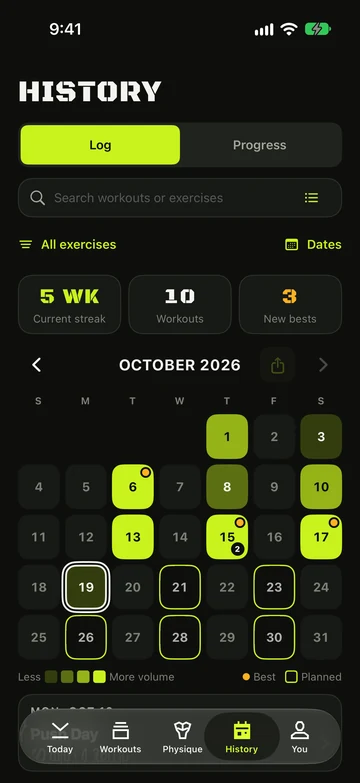
Your calendar
- Open History › Log, then use Show calendar to switch from the workout list to the month view.
- Swipe to move between months.
- Tap a day, then its workout, to see the full summary.
- The top of the calendar shows your Streak, workouts this month and new bests.
- A day tile fills orange or red when your training load was high that day. The legend adds High load and Too much, and the day’s card says why. See Physique.
Edit or delete a workout
- Open the workout from the calendar and tap Edit.
- Change weights, reps, sets or exercises, or the start and end times, then tap Save. Your records update to match.
- To remove it, tap ⋯ (More), then Delete workout.
Progress and records
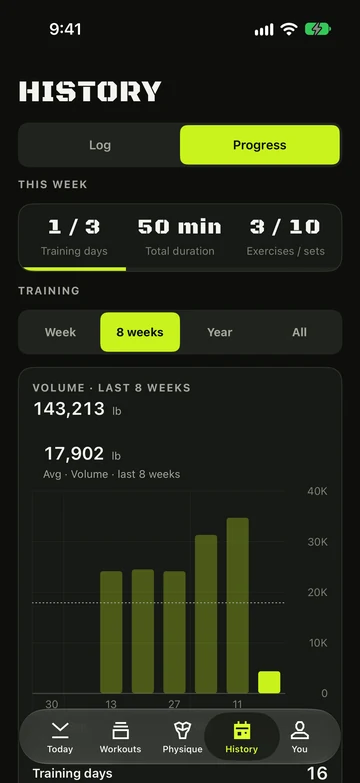
- Tap Progress in History to see volume for the Week or 8 weeks, your Top exercises and Sets by muscle.
- Tap an exercise for its chart: estimated 1RM, best set, volume or sets per week, plus its Records.
- Tap Table · CSV, then Export CSV, to save that exercise’s sessions as a spreadsheet.
- Under Top exercises, tap All personal bests for every record you’ve set, newest first under month headers. Each row shows the exercise, the kind of record, the date and the value. Tap one to open its workout. It’s free, and a record that was later beaten stays listed.
- The Monthly tonnage card shows the total weight you lifted in each calendar month, as bars, with the current month in lime. Scroll for earlier months. Without Pro you see the last 8 weeks’ months, and a line, Months before the last 8 weeks are part of Vivrep Pro, opens Vivrep Pro.
Heart rate across your workouts (Pro)
With an Apple Watch, two views show how your heart rate behaves across several workouts. They need enough readings, so they stay hidden until you have them.
- Open History › Progress, then Heart, then the Heart rate & calories card. Scroll below the trend charts to Average workout profile.
- Read the line: the middle heart rate across your last 8 workouts with heart rate, from Start to End, with the middle half of workouts shaded.
- Open an exercise from Top exercises. Heart rate by set shows the average heart rate of set 1, set 2 and so on, and how far it dropped in the rest after each.
- The workout profile needs at least 3 workouts with enough readings. A set number on Heart rate by set needs at least 3 sets.
- Apple Watch records every few seconds, so short sets and short workouts have few readings. Sets with fewer than 3 readings are left out.
- Warm-up sets, warm-up and cool-down moves, and imported workouts are not included.
Strength standards
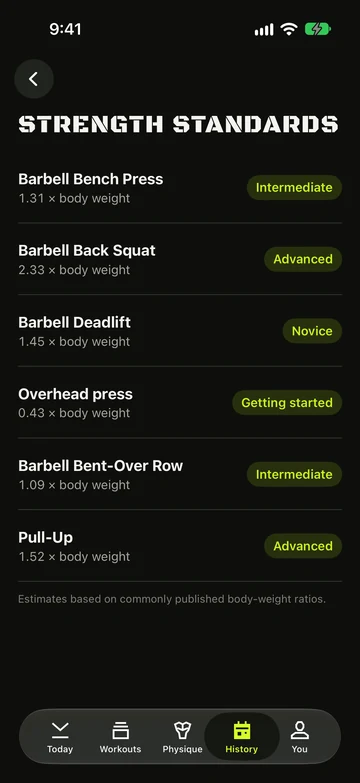
See how your six main lifts compare with your body weight: bench press, back squat, deadlift, overhead press, barbell row and pull-up. Your multiple, like “1.3 × body weight”, is free. Level names, the next level’s target and the level-up line are Pro.
- Log your body weight with Log weight on Physique › Body.
- Open History › Progress. The Pro card contains Heart, Strength standards and INSIGHTS.
- Tap a lift to open its page. With Pro, the card shows its level, a four-step bar from Novice to Elite, and what the next level takes, like “0.45 × to Advanced · about 32 kg more”.
- If Vivrep asks, pick a set under Compare against. You can switch it later from the ⋯ menu on the card.
- With Pro, not starting from zero? Tap Edit starting lifts, under the list, and tap a lift to set what you can lift for about 5 reps: bench press, squat, deadlift or overhead press. Tap Done. Vivrep uses these numbers for your level and starting weights until you log your own sets. Enter 0 to clear one.
- Levels run Getting started, Novice, Intermediate, Advanced and Elite.
- Only the standard lift counts, not variations such as incline bench or dumbbell press. Pull-ups and chin-ups both count, and weight added to them counts on top of your body weight.
- The level uses your best estimated 1RM from working sets of 1 to 10 reps. Warm-ups and sets of 11 or more reps are ignored.
- On a lift’s own page, free users see its multiple of body weight and its best estimated 1RM; the level is blurred behind a Pro line.
- After a workout, a lift that rose a level adds a line to the summary, like “Barbell Bench Press is now Intermediate”. A change in body weight alone never counts as a level-up.
Pro Insights
Insights turns the sets you log into five cards: neutral observations about your training, never medical advice.
- Open History › Progress. The Pro card contains Heart, Strength standards and INSIGHTS.
- Tap a card for its chart and details.
- Free users see the cards blurred, with a sample where there is nothing of yours yet. Tap a card or Unlock to open Vivrep Pro.
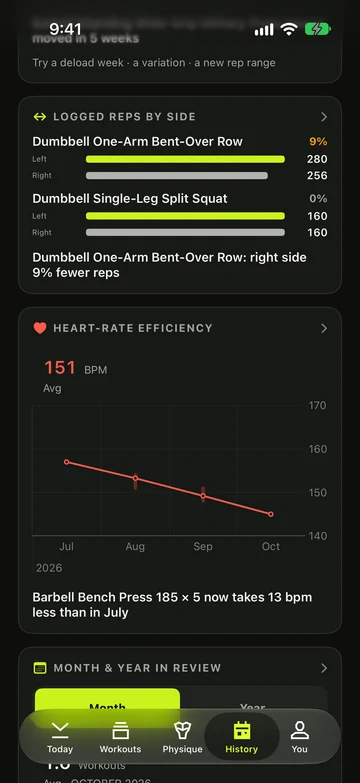
- Heart-rate efficiency compares your heart rate at the same weight and reps over time. It needs an Apple Watch and 4 sessions over 3 weeks at that load.
- Logged reps by side compares reps per side over the last 8 weeks, for moves you log with Log each side.
- Rep maxes & est. 1RM shows your best set at each rep count from 1 to 15, and your estimated 1RM over time.
- Plateaus lists lifts you train every week whose best hasn’t moved in 4 weeks or more, with ideas to try: a deload week, a variation or a new rep range. Nothing changes automatically.
- Month & year in review shows your training at a glance, to share as an image.
Milestones
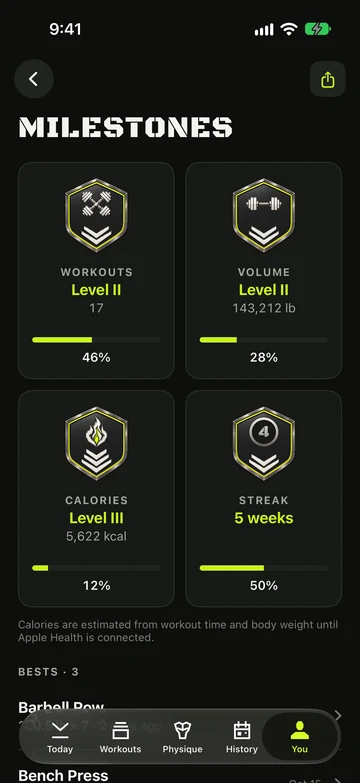
- You › Milestones shows your level (I to X) on four tracks: Workouts, Volume, Calories and Streak. Tap Share there to send your milestones as an image — free, once you’ve finished a workout.
- After a workout you may see a celebration: a new level, a milestone, a streak, finishing your week, or a new best.
- During a workout, a set that beats your best glows, and you’ll see a short NEW BEST note.
- A streak counts weeks where you trained on at least as many days as your days-per-week target.
Share a workout or a month
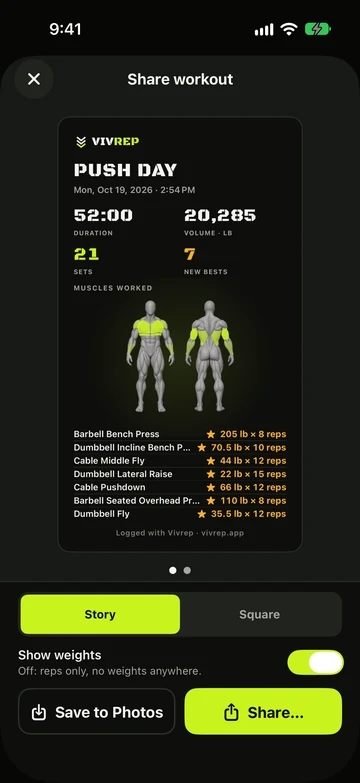
- Tap Share on a workout’s summary, or on the month header in History for the whole month.
- Pick Story or Square, and turn Show weights off if you’d rather share reps only.
- Swipe sideways between With muscle map and Without muscle map. Vivrep remembers your choice.
- Tap Save to Photos, or Share… to send it to any app.
Still stuck?
Email us. Tell us which screen you were on, your iPhone model and your iOS version.