Physique
See which muscles you’ve trained and how recovered they are, and keep measurements and private photos.
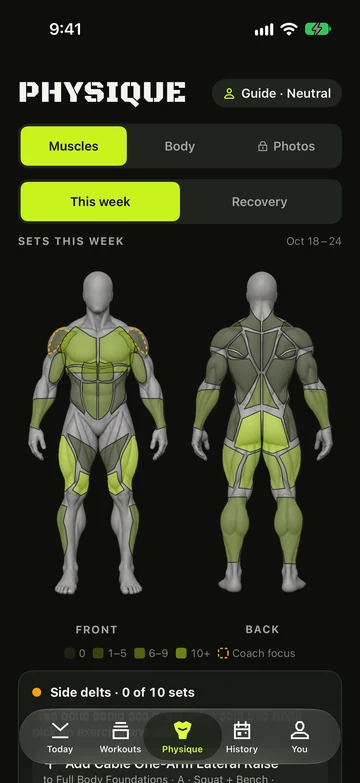
Muscle map
- Open Physique › Muscles.
- Choose This week to see sets per muscle against each muscle’s weekly target, or Recovery to see how fresh each muscle is.
- Tap a muscle to see the exercises that trained it this week.
- Short on a muscle? The coach card suggests an exercise. Tap the button that names the exercise and workout to add it there, or Undo to take it back.
- A set counts in full for the muscles an exercise targets, and as half a set for the muscles it also works.
- A muscle with no weekly target is drawn dotted in the lightest shade, and the legend adds No target.
- Adductors (inner thigh) are their own muscle: they have their own row, filter tile, volume and recovery, and aren’t counted as quads. Hip adduction work counts as lower body.
Weekly targets
Each muscle has a target number of working sets a week. Change them to suit your plan. It’s free.
- Open Physique › Muscles with This week selected and tap Weekly targets under the legend.
- Tap a muscle and turn the wheel to its sets a week, from 0 to 30. Choose 0 for no target.
- Tap Done.
- To go back, tap Reset to defaults, then confirm Reset targets.
- The map, the coach card, Today’s muscle nudges and Progress all follow your targets straight away.
- A muscle set to 0 shows No target.
Recovery
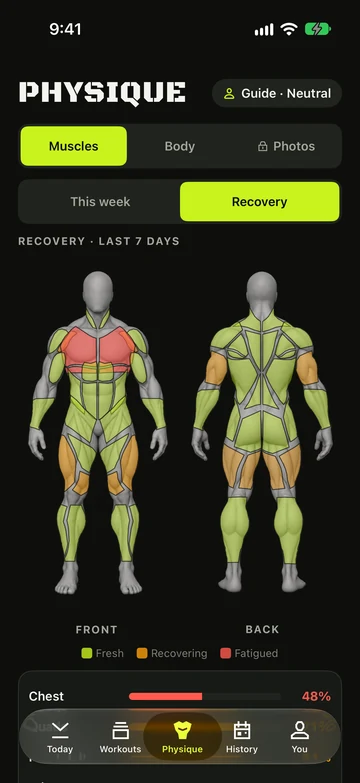
- Each muscle shows a recovery %: Fresh at 90 % and up, Recovering from 50 to 89 %, and Fatigued under 50 %, with a “ready in” estimate.
- It’s worked out from your sets and effort over the last 7 days. Big muscles like quads and back take longer than arms and calves.
- Today shows a recovery card, and a workout whose muscles are all at 80 % or more gets Fits your recovery.
- Rated your last two workouts All out? Today adds “Two all-out workouts in a row — consider a lighter day.” Free users see this line too.
High load and Too much
Vivrep watches for a long run of training days or a sudden jump in sets, and says so. It’s free, and it’s a heads-up, never medical advice.
- High load (orange) shows when one signal is on: you’ve trained 7 or more days in a row (or one more than your days-per-week target, if that’s higher), or your sets this week are at least 30 % above your usual week. Too much (red) shows at 10 or more days in a row, or when two signals are on at once.
- On Today, a flag and one reason line sit on the workout card, and on a rest day too. Tap it for the details. It’s hidden while you’re training.
- On a workout that isn’t started, the sheet offers Make today lighter. It cuts each exercise’s working sets by about a third for today only, then shows an Undo button for a few seconds. Your saved workout doesn’t change.
- In History, a day with a flag fills its tile orange or red, and the legend adds High load and Too much. Tap the day to see why.
- Workout reminders for the next 2 days soften with High load (“A lighter day is suggested. Open Vivrep to see why.”) and skip a flagged day with Too much.
- The Home Screen and Lock Screen widgets and the Apple Watch complication show the flag for today and tomorrow.
- With Pro, Today also flags a day when half or more of the muscles in today’s workout are Fatigued.
Muscle nudges
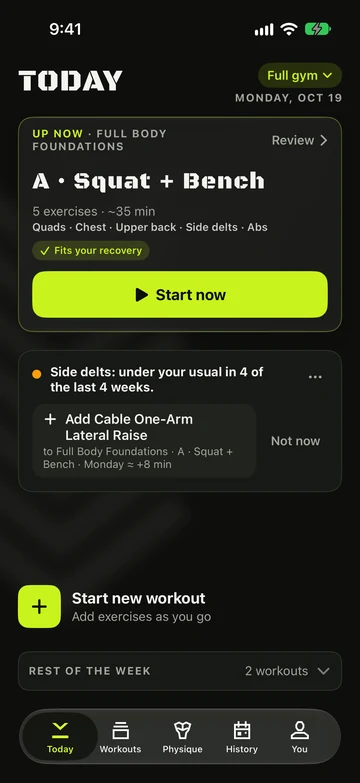
When one muscle keeps falling short, Today shows a single line about it, with a one-tap fix. It’s free.
- Look for the line on Today, such as “Hamstrings: under your usual in 3 of the last 4 weeks.”
- Tap the button that names an exercise and a workout. The builder opens with the exercise added: tap Save to keep it, or Cancel. No workout fits? Find exercises opens the library for that muscle.
- Tap Not now to pause that muscle for 4 weeks, or the ⋯ menu then Don’t suggest this to mute it.
- To change it, open You › Settings › Muscle nudges: Show nudges, How often and Suggested muscles, a list with a switch for each muscle. Turn one off to mute it and back on to allow it again.
- A muscle is flagged when it averages under half its weekly target, and clearly behind your other muscles, over the last 4 full weeks. It needs a workout in at least 3 of those weeks and at least 6 workouts.
- One muscle at a time, and never while a workout is running or a program is active. Forearms and adductors are never nudged.
- A line stays for up to a week. How often (Every week, Every 2 weeks or Every 4 weeks) sets how soon the next one can start.
- The coach card on the muscle map shows “Under your usual in 3 of the last 4 weeks” for the same muscle.
Measurements
- Open Body and tap Log measurements.
- Enter any of shoulders, chest, arms, waist, thighs and body weight, then tap Save.
- Turn on Monthly reminder for a nudge a month later, and set a Shoulder : waist goal if you like.
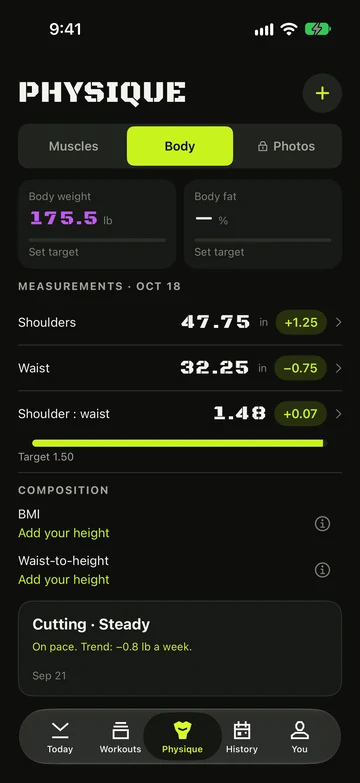
V-taper card
The Shoulder : waist row on Physique › Body shows your shoulder-to-waist ratio. Measurements and the ratio require Pro.
- Use Log measurements to record both shoulders and waist. Readings up to 21 days apart can be paired.
- Find Shoulder : waist in the measurement list on Physique › Body, once a pair of readings is available.
- Tap the ratio row to edit its goal.
- Use Log measurements again when you want to add a new reading.
- The row shows the ratio and its change when enough measurements are available.
- If the ratio is absent, record both shoulders and waist close enough together.
- Free users can track body weight and body fat; circumference measurements and the ratio are Pro.
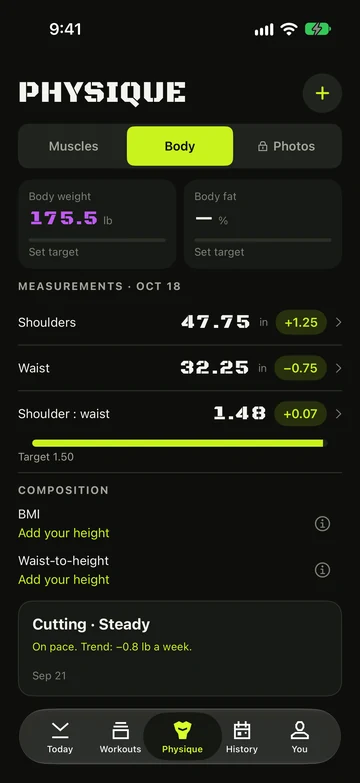
Bulk and cut phases
Say whether you’re gaining, cutting or maintaining, and Vivrep checks your weight trend against the pace you chose. It’s free, and your phase stays on this iPhone.
- Log your body weight with Log weight on Physique › Body.
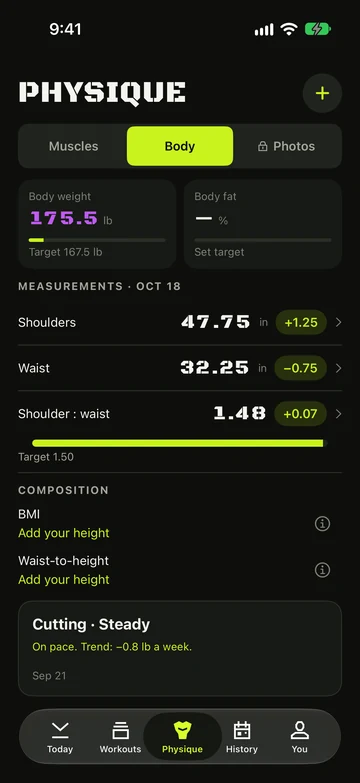
- Tap the body-weight row, then its target line (Set target if you have none yet).
- Under Phase, choose Gaining, Cutting or Maintaining, or No phase.
- For gaining and cutting, pick Gentle, Steady or Quick, then tap Done. You can also set a goal weight there.
- Paces are a share of your body weight a week: gaining 0.25, 0.35 or 0.5 %, cutting 0.25, 0.5 or 0.75 %. Steady is the default.
- On Physique › Body, the phase card shows a verdict such as “On pace. Trend: −0.4 kg a week.” Open the body-weight chart to see the dashed Your pace line.
- A trend needs weigh-ins on at least 6 different days over at least 2 weeks. Until then it reads “Keep logging: …”.
- Reached your goal weight? Vivrep offers Maintain once.
Private photo vault
- Open Photos and tap Unlock with Face ID. Your passcode works too.
- Tap Take photo or Import from Photos, and pick a pose: Front, Side or Back.
- Tap Compare to see your first and latest photo of a pose side by side, or with a slider.
- With Pro, after 12 photos of a pose over at least 8 weeks, a Timelapse card appears. Scrub or play it, then Export it as a GIF or video. After a workout, the photo button on the summary takes your next one.
- Photos are encrypted, kept only in Vivrep on this iPhone, and never added to your camera roll. The vault locks again as soon as you leave. If you turn off Lock photos with Face ID in Settings, the vault opens without asking.
Still stuck?
Email us. Tell us which screen you were on, your iPhone model and your iOS version.