← Guides
Logging a workout
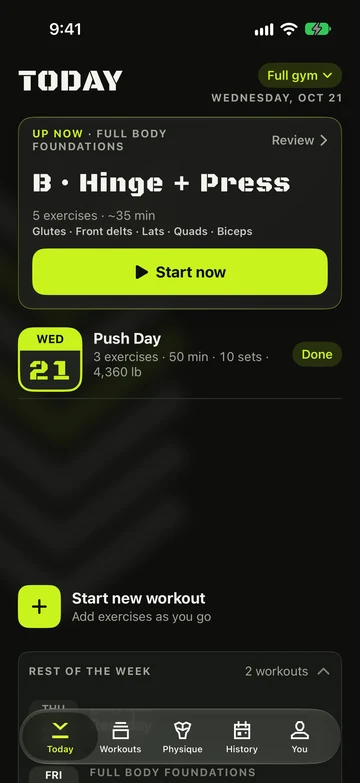
Start from Today, check the plan, then log each set with one tap. Vivrep fills in the numbers for you.
Start a workout
- Open Today and tap a workout to open Review, or tap Start now beside today’s workout to go straight in.
- Check the list on Review. Tap a row to change its sets and reps, swipe it to Replace or Remove, or tap Add exercise.
- Tap Start workout.
- Nothing planned? Tap Empty workout and add exercises as you go.
- Want to loosen up first? Add a warm-up and a cool-down to the workout. See Warm-up & cool-down.
- Start by voice, with the Action button or from a control: see Siri, Shortcuts & controls.
- With Pro, a workout on Today can carry a chip: “2 ready to go up” when that many of its exercises have a suggested step up, or Deload week on a Pro program workout in its deload week.
Log your sets
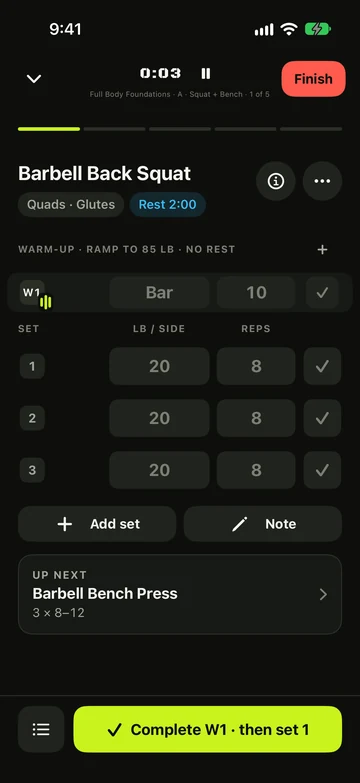
Every open set already shows a weight and reps. Set 1 comes from your last session; later sets copy the set before. After a few sessions with the same pattern, Vivrep suggests the next set for you in lime, with a note such as Set 2 is suggested from your last 3 sessions.
- Tap a weight or reps box to open the keypad. Type a number or use − and +, tap Next · Reps, then Done.
- Or drag up or down on a value to nudge it one step at a time.
- Tap ✓ on the set, or Complete set 1 at the bottom, to log it. The rest timer starts.
- Tap Add set for an extra set. Swipe a set to the left to delete it.
Bar lifts: weight per side
- On barbell, EZ bar, trap bar and Smith machine exercises, the weight is per side. The column header reads LB / SIDE, and you type the weight on one sleeve.
- On the keypad, − and + step by your gym’s smallest plate. The plate line shows the sum, for example “bar 45 lb + 30 lb × 2 = 105 lb”. With Pro, tap it to open the plate sheet.
- Logging snaps to a weight your gym’s plates can load. History, records and the summary keep the total. The Plate calculator guide has the details.
Log in any order
- You can log any open set. Log set 3 while sets 1 and 2 are untouched and it moves up to become set 1. Sets you’ve already edited keep their place.
- Exercises work the same way: start exercise 2 first and it moves up to become exercise 1. This is for today only — your saved workout keeps its order.
Warm-ups, drop sets and effort
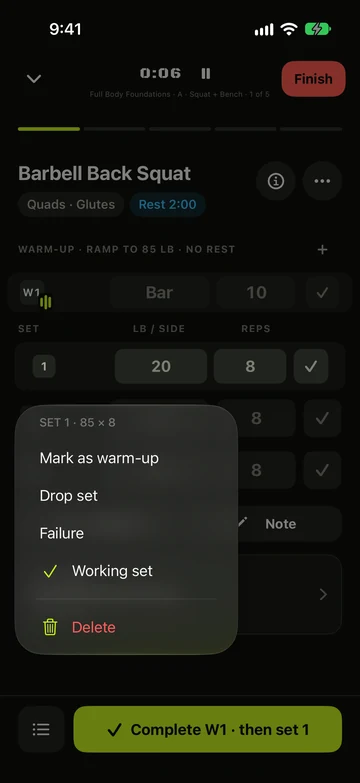
- Touch and hold a set to change its kind: Mark as warm-up, Drop set, Failure or back to Working set. Drop sets run back to back; the rest starts after the last one.
- Tap Add warm-up sets for a short ramp up to your working weight.
- To rate effort, set You › Settings › Logging › Effort scale to RPE or RIR. Rating chips then appear on the keypad; tap the chosen chip again to clear it.
Change things mid-workout
- Tap Exercise options (the sliders button) on an exercise.
- Choose Replace exercise, Edit sets, targets & rest, Reorder exercises, Add exercise after this, Skip for today or Delete from workout.
- Tap the list button at the bottom left to see the whole workout and jump between exercises.
Finish or extend
You can leave the workout screen any time. The workout keeps going, and Today shows it In progress with Resume and Discard.
- Tap Finish. If sets are left, choose Finish · skip the rest or Keep going.
- If your workout has a cool-down with moves left, Start cool-down shows in place of Finish. Do the cool-down, or tap Skip cool-down on its page, and Finish comes back.
- Rate the session under How hard was it? on the summary.
- Forgot a set? Tap Extend on the summary to reopen the workout and keep logging.
- Finishing an Empty workout asks you to Name this workout. Type a name, tick the box that saves it as a workout for that weekday if you want to do it again, and tap Save. Skip keeps the suggested name, and Discard this workout deletes the session after you confirm.
- Without Pro, the summary can show one small card pointing at a Pro benefit: longer trends after your 10th workout, the plate calculator after a plate-heavy session, Insights after your first personal best, or a 4th gym once you have 3. Tap See Vivrep Pro to look, or Not now to hide that card for good. Pro members never see it.
Still stuck?
Email us. Tell us which screen you were on, your iPhone model and your iOS version.