← Guides
Rest timer & notifications
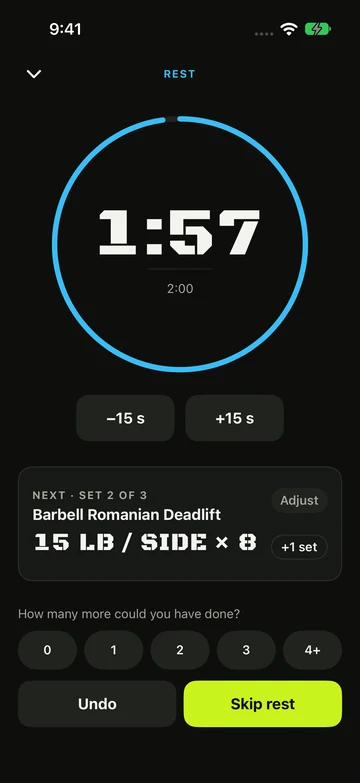
Rest starts the moment you log a set and follows you to the Lock Screen, Dynamic Island and Apple Watch.
During rest
- Log a set. The rest screen opens with a countdown for that exercise’s rest time.
- Tap −15 s or +15 s to change it, or Adjust to type an exact time.
- Tap Skip rest to move on early, or +1 set to add one more set.
- Lock your iPhone if you like — the timer keeps running.
- Change the starting rest for new exercises in You › Settings › Logging › Default rest. During a workout, change one exercise’s rest with Exercise options › Edit sets, targets & rest.
Minimise the rest screen
- Tap the chevron at the top of the rest screen. The rest keeps running.
- On the workout screen, a rest bar appears above the bottom bar: “REST · 1:23”, +15 s and Skip.
- Tap the bar to bring the rest screen back.
- The next rest opens the rest screen again.
Alerts
- Rest done tells you what’s next, for example Next · Set 3 of 4.
- A silent 10 seconds heads-up comes first. Turn it off with 10-second warning.
- A chime at zero is off by default. Turn it on with Sound at zero.
- Vivrep asks to send notifications the first time a rest starts, unless you allowed them during setup. If you said no, turn them on in iOS Settings › Notifications › Vivrep.
- While the workout or rest screen is open, you won’t see a banner — your iPhone gives a short buzz instead.
Lock Screen and Dynamic Island
- Start a workout and lock your iPhone. The current set and rest countdown show on the Lock Screen and in the Dynamic Island.
- Tap ✓ to log the set, or Skip rest to end the rest — no need to unlock.
- If a set still needs a weight or reps, tap Open to finish it in the app.
- The next-set card on the rest screen, the Lock Screen and the Dynamic Island show bar lifts per side, such as “30 lb / side × 5”, or “Bar × 5” with no plates. Other exercises show the total.
Still stuck?
Email us. Tell us which screen you were on, your iPhone model and your iOS version.