← Guides
Settings & units
Units, rest, effort, language and more — what each setting does and where it lives.
Change a setting
- Tap the You tab, then Settings.
- Choose a group: General, Training, Health & privacy or About. Open the panel you need.
- Changes save straight away. Use Back to return to the Settings overview; all guides are available from the single User guide link under About.
Logging
- Units — lb or kg. Canada and the US start in lb, everywhere else in kg. Switching changes how weights are shown; your logged sets stay exactly as they were.
- Effort scale — Off, RPE or RIR, for rating sets on the keypad.
- Barbell & machine step — the smallest jump Vivrep suggests for barbells and machines.
- Warm-up sets — whether Vivrep suggests warm-ups for heavy lifts.
- Smart set suggestions — on by default. With Pro, turn it off to hide the weight and rep suggestions: the step up on set 1, the hold note, the arrows and chips on Review and the “ready to go up” chip on Today. Without Pro, the switch changes nothing.
- Count both dumbbells — on by default. Volume counts both dumbbells or kettlebells on two-implement exercises. It only affects workouts you start after changing it.
- Ask after each set — asks how many more reps you could do after a set. Turning it on also enables RIR if effort was off.
- Start each side with — choose which side you log first for exercises recorded separately on the left and right.
Rest timer and workouts
- Default rest — the rest for new exercises. It starts from the goal you picked during setup.
- Rest after warm-ups — a 45-second rest after warm-up sets (off by default).
- 10-second warning and Sound at zero — how rest alerts reach you.
- Live Activity on Lock Screen — the countdown on the Lock Screen and in the Dynamic Island.
- Auto-finish after 3 h idle — asks you to wrap up a forgotten workout.
- Suggested warm-up and Suggested cool-down — how long a ready-made warm-up or cool-down is (Off, 3, 5, 8, 10 or 15 min). Auto-fill is Pro; see Warm-up & cool-down.
- Haptics during the 3-second count-in and Haptics in a timer’s last 5 seconds — taps on your wrist and phone during warm-up and cool-down timers.
Exercise lists and photos
- Exercise lists — Exercise images and Muscle group images switch the demo picture and the muscle picture in exercise lists on or off.
- Exercise sort order — Relevance, Favourites first, Most used first, Least used first, Common, Most logged, Least logged.
- Photos (Pro) — Lock photos with Face ID is on by default. Turning it off asks for Face ID or your passcode first.
General and help
- First day of the week — Region default, Sunday or Monday. Today, History, streaks and widgets all follow it.
- Language — Same as iPhone, or pick one of Vivrep’s languages: English, French, Spanish, Portuguese, Simplified Chinese or Traditional Chinese.
- Show tips again under About shows workout and tab tips again. Edit your profile and training preferences directly in Settings.
Confirm before starting
Links, widgets and Home Screen shortcuts can start a workout the moment you tap them. Turn this on to be asked first.
- Open You › Settings › Workouts.
- Turn on Confirm before starting from widgets and links. It’s off by default.
- The next time a widget Start now button, a Home Screen quick action or a start link opens Vivrep, you see Start a workout? with the workout’s name. Tap Start now to go ahead, or Cancel.
- If a workout is already running, it just resumes with no question.
- Links to Today, the live workout or Vivrep Pro never ask.
- The setting is per iPhone and is included in a backup.
Vivrep Pro and the paywall
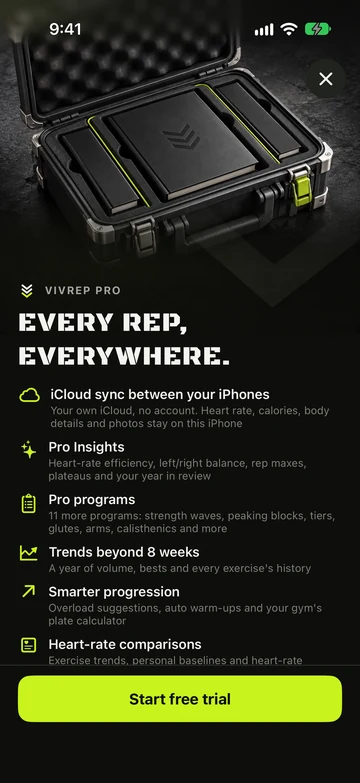
Logging stays free forever. Vivrep Pro adds the rest, and nothing opens the paywall on its own.
- Tap any locked control or Pro chip, or open You › Your data and tap See Vivrep Pro.
- Choose Monthly, Yearly or Lifetime. Yearly is selected for you and Lifetime is a one-time purchase with Family Sharing; it may carry a Launch price chip.
- Tap Start free trial or Continue and confirm with the App Store.
- Reinstalled, or on a new iPhone? Tap Restore purchases.
- See every Pro feature at the bottom of the paywall opens the full list on the Vivrep website.
- With Pro, You › Your data reads Vivrep Pro · active.
- If Pro ends, nothing you logged is deleted and your data stays on this iPhone.
Notifications
- Backup reminder — a badge and a red count remind you when you have logged the chosen number of workouts since a backup. The Back up row in You › Your data then says how many. Remind after 10 workouts changes that number, and Dismiss in the Back up sheet clears the reminder until you log that many again.
- Workout reminders and Reminder time — choose whether and when to receive reminders for scheduled workouts.
- If a control is unavailable, open Notification permissions and allow badges or alerts in iPhone Settings.
Muscle nudges
- Show nudges — show suggestions for muscles receiving less training.
- How often — choose every week, every 2 weeks or every 4 weeks. A suggestion can remain visible for a week.
- Suggested muscles lists every muscle a nudge can name, each with a switch. Turn a muscle off to mute it, and on to allow it again. Choosing Don’t suggest this on a nudge turns its switch off too.
What’s new
After an update, Vivrep shows a short list of what changed, once.
- Update Vivrep and open it on Today.
- Read What’s new in Vivrep 1.2, then tap Continue.
- It never shows on a fresh install, during setup or in the middle of a workout. It waits for Today.
- Each note is one line, and you only see it once.
Still stuck?
Email us. Tell us which screen you were on, your iPhone model and your iOS version.