← Guides
Workouts, programs & the builder
Build your own workouts, plan them on set days, or start one of 13 ready-made programs.
Build a workout
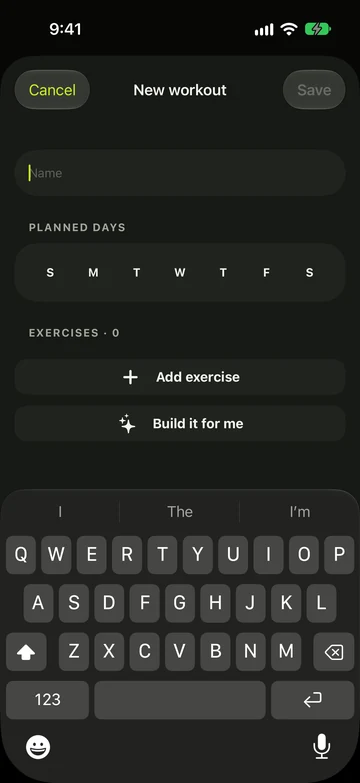
- Open Workouts and tap New workout (the + button), or Create workout if you don’t have any yet.
- Give it a Name and tap the days you plan to do it under Planned days.
- Tap Add exercise and pick one or more exercises.
- Tap a row’s ⋯ menu to set Sets, Reps (or Time) and Rest.
- Drag rows to reorder, swipe one to Replace or Remove, then tap Save.
- Tap Add warm-up or Add cool-down above Add exercise to give the workout a warm-up before the first set or a cool-down after the last. See Warm-up & cool-down.
Manage your workouts
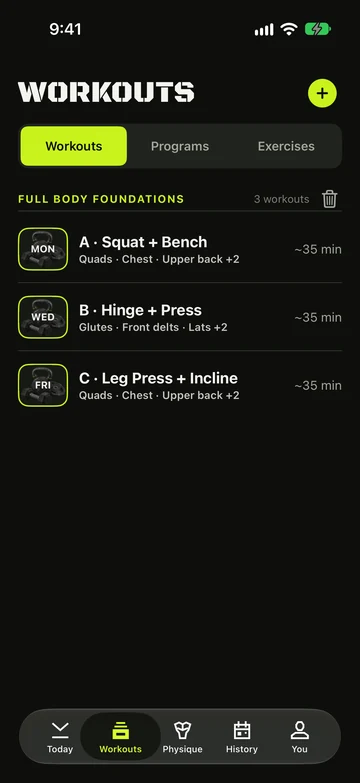
- With saved workouts, a search box and filters sit above the list. See “Find a workout” below.
- Tap a workout to open Review, where you can check it and start it.
- Swipe a workout to Edit or Delete it. Deleting a workout keeps every session you logged with it.
- Drag workouts to reorder the list.
- Changed the plan on Review? When you leave, choose Save to workout to keep the changes, or Save for today to use them just this once.
Find a workout
- Open Workouts › My workouts and type in Search workouts. It matches the workout’s name and the names of its exercises, in any word order.
- Tap All gyms or a gym chip to keep only workouts whose exercises all fit that gym’s equipment.
- Tap a length chip to keep workouts of 30 minutes or less, 31 to 45, 46 to 60, or over 60. Tap it again to clear it.
- Nothing there? Tap Clear filters.
- Search, gym and length work together. They reset when you leave the app.
- While a filter is on, the delete buttons on program sections are hidden.
Start a program
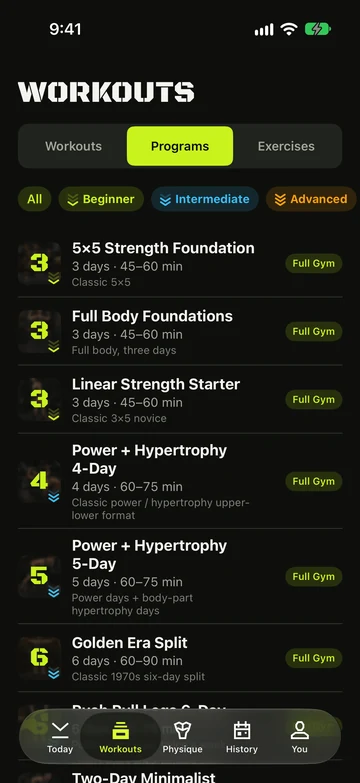
Programs are well-known training plans you can follow as they are — from 5×5 Strength Foundation to Push Pull Legs 6-Day and Bodyweight Anywhere.
- Open Workouts › Programs and filter by All, Beginner or Intermediate.
- Check the chip on each program: it shows your gym when the program fits, or what’s missing, such as Needs Barbell or Needs more equipment.
- Tap a program to see its Weekly schedule, suggested starting weights and Progression.
- Tap Start this program. Its workouts are added to My workouts, named like “Upper / Lower Builder · Upper A” and scheduled on your training days.
Move a workout to another day
Something came up? Move a planned workout to another day of this week or next, from Today. It’s free.
- Open Today and open Rest of the week (or Next week).
- Tap Reschedule. A switch lets you pick this week or next week, and every workout you haven’t done gets its own Reschedule button.
- Tap Reschedule under the workout. In Move this workout, tap the “Move to” button for the day you want.
- Tap Done when you’ve finished moving things.
- Only this week changes. Your saved planned days stay as they were, and next week starts from them again.
- To undo, tap Reset week under the list, then confirm Reset plan. It clears every move in the week you’re looking at, including a workout you started on another day.
- You can’t move a workout to a day that has passed, or to another week.
- Reschedule is hidden while a workout is running on your iPhone or Apple Watch.
- Moves apply to your week strip, widgets, reminders and Apple Watch. The Watch only knows this week’s moves until next week starts.
Missed a program day
If a day of your program went by without a workout, Vivrep asks once when you open Today. The Missed workout sheet says which workout was planned and for when.
- Tap Shift this week to do it today and slide the rest of this week’s days of that program along. Reset week undoes it.
- Or tap Skip it to leave it out. Nothing is logged, and the program carries on with its next workout.
- The sheet doesn’t come up while a workout is running, or on top of another screen. Closing it, or swiping it away, counts as asking once: it won’t come back for that day.
- Days that slide off the end of the week join the start of next week’s plan.
Training-max retest (wave programs)
Wave programs run on a training max. Every third cycle, week 3 ends with a retest: its last set is as many reps as you can. Wave programs are part of Vivrep Pro.
- Do the retest workout and finish it.
- On the summary, find New training max. Each tested lift shows its old and proposed max, such as “Squat · 110 kg → 115 kg”.
- Tap Accept to use the new number, or Keep current to stay where you are.
- The proposal is 90% of your estimated one-rep max from that set, never more than 10% away from the current max, rounded to a weight your gym can load.
- If the set fell short of its target, the card says so and proposes 90% of your current max. It applies from the next cycle.
- Nothing changes until you tap Accept. The retest replaces that cycle’s usual step up.
Still stuck?
Email us. Tell us which screen you were on, your iPhone model and your iOS version.