
← Guides
Your data & privacy
Your workouts live on your iPhone. Here’s how to back them up, export them, delete them and keep them private.
Where your data lives
- There’s no account and no Vivrep server. Your workouts are stored on this iPhone, and on your Apple Watch for workouts you start there.
- Vivrep has no ads and no trackers, and collects no data about you.
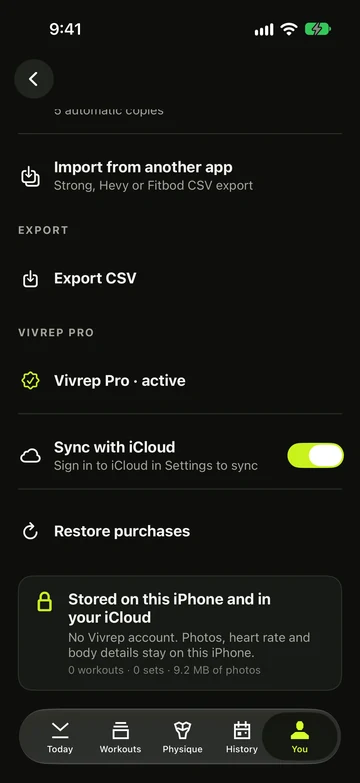
- You › Your data shows how many workouts and sets you’ve logged and how much space they take.
Back up and move
Under Backup, Back up makes one .vivrep file with your workouts, plans, gyms and settings, and Restore from backup brings it back — on this iPhone or a new one. Import from another app brings in a Strong, Hevy (CSV or tab-separated) or Fitbod export. All free; see Backup, restore & import.
Export your sets
- Tap You, then Your data.
- Under Export, tap Export CSV.
- Save the file to Files, send it with AirDrop, or open it in a spreadsheet app.
- The file has one row per logged set, warm-ups included: date, workout, exercise, set, kind, weight, reps, time, distance, RPE and notes.
- To export one exercise’s history, use Table · CSV on its Progress page.
Export for AI chat
Want an AI assistant to look over your training? Vivrep builds a short, readable summary you can paste into any chat. It’s free. Vivrep never contacts an AI service itself.
- Tap You, then Your data.
- Under Export, choose 4 weeks, 12 weeks or All below Export for AI chat. 12 weeks is selected for you.
- Tap Export for AI chat. Vivrep copies the summary to your iPhone’s clipboard and opens the share sheet with a Markdown file.
- Paste it into your chat and add your question at the end.
- The summary lists your weeks, each workout with its sets as weight × reps, your all-time bests on the six standard lifts, and your weekly sets per muscle against your targets.
- It leaves out your name, Apple Health details, workout notes and times of day.
- No logged sets yet? The row says Nothing to export yet.
Delete your data
- Delete one workout: open it in History, tap ⋯ (More), then Delete workout.
- Remove what Vivrep saved to Apple Health: You › Settings › Apple Health › Remove Vivrep data from Health. Your workouts in Vivrep stay.
- Delete everything: delete Vivrep from your iPhone and Apple Watch. Remove the Apple Health data first if you want that gone too, and back up first if you might want it back.
Still stuck?
Email us. Tell us which screen you were on, your iPhone model and your iOS version.