← Guides
Backup, restore & import
Back up your data, protect photos with a password, restore safely, and import Strong, Hevy or Fitbod history. All free.
Back up
A backup is one .vivrep file with your workouts, plans, gyms, settings and measurements. You keep it; we never see it.
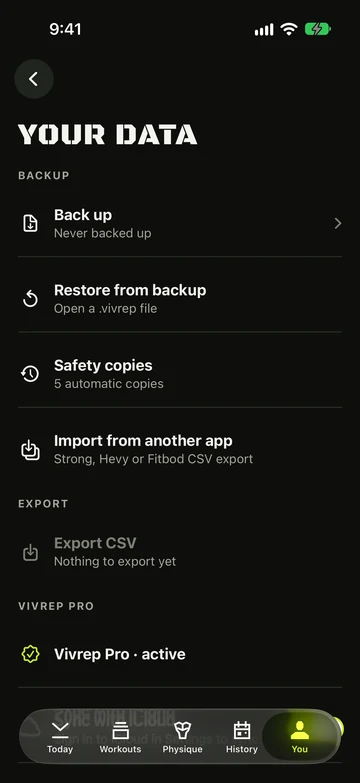
- Tap You, then Your data, then Back up.
- Want your progress photos in it? Turn on Include progress photos, verify with Face ID or your device passcode, then enter and repeat a password of at least 8 characters.
- Tap Back up. When it says BACKUP READY, tap Save to Files or Share… to send it to yourself.
- Last backup in Your data shows when you last saved or shared one.
- Logged enough workouts since your last backup? The Back up row shows a red count and a red line such as “5 workouts since last backup”. Open the Back up sheet and tap Dismiss, under the Back up button, to clear the reminder without making a backup. The count starts again from that moment.
- Change how many workouts trigger the reminder under Notifications in You › Settings, or turn Backup reminder off.
What is encrypted?
Including photos does not encrypt the whole backup. The password encrypts the photo images, thumbnails, dates and poses. Workouts, plans, gyms, measurements and settings remain readable without it.
- Without photos, the backup has no password protection. Keep any backup somewhere private; anyone with the file can read its training data.
- Keep the photo password separately. It cannot be recovered or reset for an existing backup; forgetting it prevents photo restoration.
- Progress photos never sync to iCloud. You can manually save a backup containing photos to iCloud Drive through Files and restore it on another iPhone. This is a saved backup, not automatic photo syncing.
Restore, or move to a new iPhone
- Get the file onto the iPhone: open it from Files, Mail or AirDrop, or tap Restore from backup in Your data.
- Check the preview: how many workouts, when it was made, and whether it has photos.
- Choose Merge to add what’s missing without removing anything, or Replace to erase this iPhone’s workouts, plans and settings and restore the backup.
- If the backup has photos, enter its password, then tap Restore.
- A safety copy of your current data is kept first. Undo restore in Your data works for 24 hours, and keeps workouts you logged since.
- Finish or discard a running workout before you restore.
- With Pro iCloud sync active, Replace also replaces synced training data on your other devices. Read the warning before restoring.
- After three wrong photo-password attempts, Restore without photos becomes available. Training data can still be restored; existing vault photos stay when the backup has no photos or is restored without them.
Automatic safety copies
Vivrep keeps local safety copies before a restore or import, and around certain iCloud sync, account and data-migration changes. These help you recover from changes; they are not a backup stored outside your phone.
- The normal limit is five recent copies. Older unprotected copies rotate out; a copy needed for Undo or a temporarily protected copy cannot be deleted while protected. Unchanged data can reuse an existing copy.
- Open Safety copies in Your data and tap a copy to preview it. Restoring uses Replace, not Merge, and keeps another safety copy first. Finish or discard a running workout before restoring.
- Safety copies never contain progress photos and are not password-encrypted. Restoring one leaves your photo vault alone. Copies stay on this iPhone, so save a manual backup elsewhere to protect against losing the phone.
Import from Strong, Hevy or Fitbod
- Export your workouts from Strong, Hevy or Fitbod. A CSV works for all three, and Hevy’s tab-separated .tsv export works too.
- In Vivrep, tap You › Your data › Import from another app and pick the file. You can also open the file with Vivrep from Files or Mail, or share it to Vivrep.
- Check the preview. If a Strong file has no weight unit, choose kg or lb.
- If it says exercises to check, open Check exercises and pick what each name becomes: a library exercise, Create custom or Skip.
- Tap Import. Undo import in Your data works for 24 hours.
- Workouts already in Vivrep are skipped, so importing the same file twice adds nothing.
- Exercises you choose or create in Check exercises are remembered for the next import.
Still stuck?
Email us. Tell us which screen you were on, your iPhone model and your iOS version.